


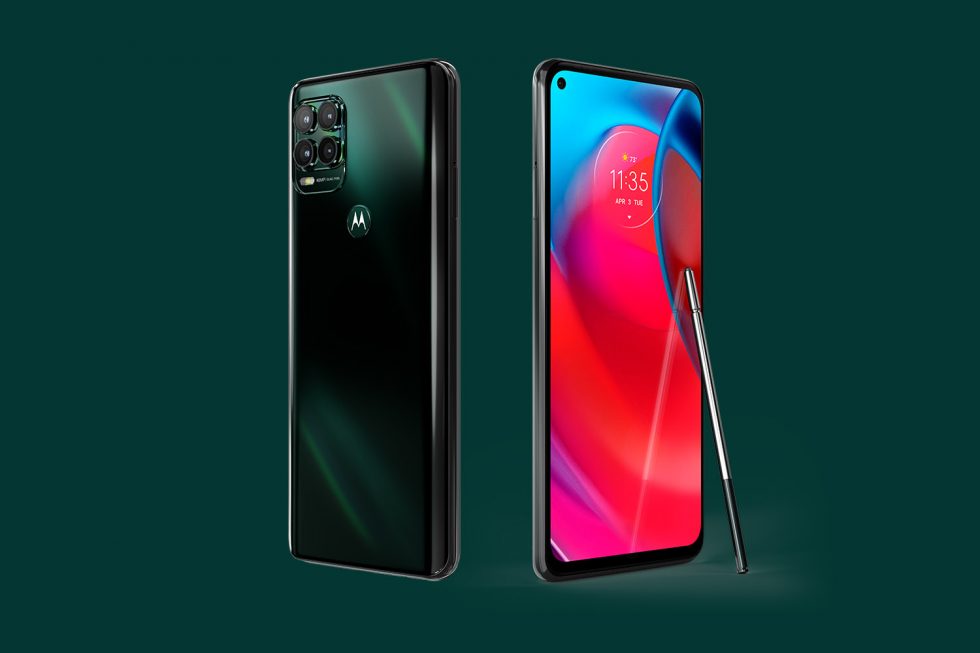
How to screen record on Motorola G Stylus? Record screen on Motorola G Stylus 5G? Make a screen video record on Motorola G Stylus?
Recording the screen on your Motorola G Stylus is can easily be done for education purpose and you can use sound to make the video tutorial and then later save it on your device file which can be upload on youtube and other social media platforms.
The good news is that you can easily record the screen of your device on your Motorola G Stylus without any issues. Below, we will be showing you how to record the screen on your Motorola Stylus smartphone.
How to Screen Record on Motorola G Stylus
Step 1: Open the quick settings by swiping from top of your screen and touch  If you are playing a game and then the Moto Gametime is on, just touch
  >
> 
Step 2: To open the recorder, touch Start, and then you will see a 3-second countdown before recording. Now, to adjust the sound and video option before you start, touch the countdown icon.
Step 3: To stop the screen video recording, touch the  icon on the recorder. Or you can swipe down from the top of the screen, and touch the
  Notification.
How to Adjust Sound And Video Options While Recording Screen on Motorola G Stylus
While on the screen recording, you can mute or record your device’s sound. You can even include your own narration or a thumbnail view of your selfie video in the corner of the screen.
Below are some of the settings and options you can use to make your screen recording interesting and nice.
Touch  to Mute or turn off the phone mic.
Touch  to on the device mic and record your narration using the microphone.
Touch  to record your phone’s sound.
Touch  to record both your phone’s sound and narration.
Touch  to include a selfie video in the corner.
Touch  to turn off the selfie video cam.
You can also adjust the frames per second or screen touches in the phone setting.
How to View Video Screen Recording on Motorola G Stylus
To view the video recording after you have just captured it, swipe down from the top of the screen and touch the notification icon. To locate the video anytime on your phone, open the Photos, Files, or other media viewing app, and then search for the screen recorder folder.
About Motorola G Stylus
The Moto G Stylus is a great device that comes with a large display size of 6.8 inches and it has a resolution of 1080 x 2400 pixels. The handset is powered by Qualcomm SM4350 Snapdragon 480 5G chipset with 6GB RAM and 5000 mAh battery.
 (0 votes, average: 0.00 out of 5)
You need to be a registered member to rate this.
 Loading...


Leave a Reply